

Fill in the assignment creation form
· 2 min read
This guide describes the form controls observed in Rumahsekolah. Final saving and submission were not tested; check the actual result after any action.
Preparation
Use an authorized account and the intended school. Prepare approved information and avoid duplicate records.
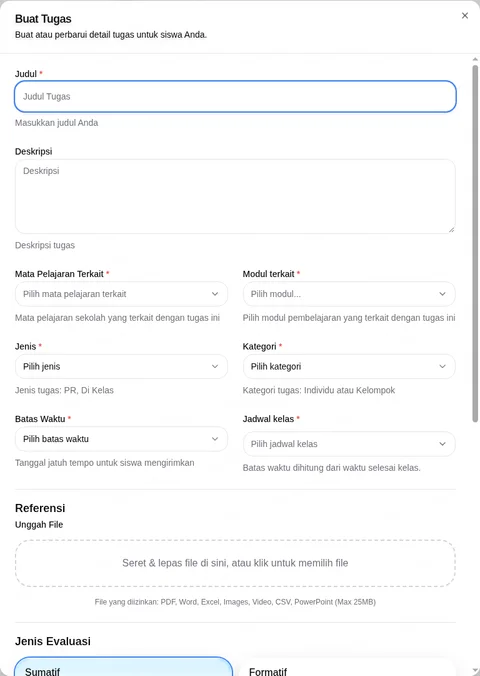
As a teacher, open Learning → Tugas → + Buat to open Buat Tugas. The inspected teacher interface uses Indonesian labels.
Complete required Judul, Mata Pelajaran Terkait, Modul terkait, Jenis, Kategori, Batas Waktu, and Jadwal kelas. Review Deskripsi. Helpers list PR / Di Kelas for type and Individu / Kelompok for category; class-related due time is based on class end.
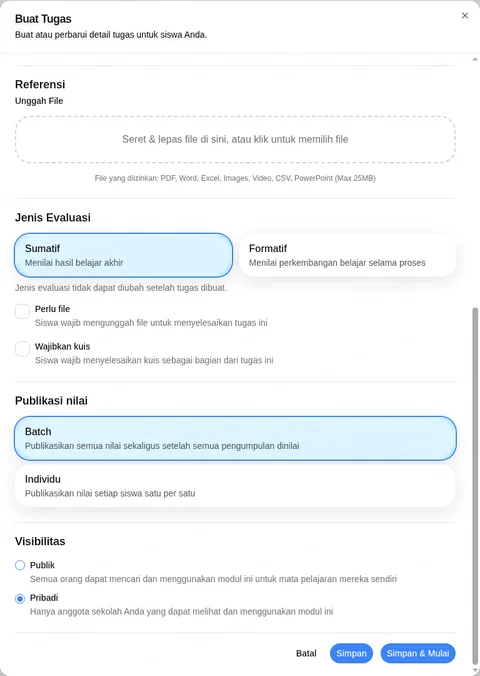
Under Referensi → Unggah File, allowed types are PDF, Word, Excel, Images, Video, CSV, PowerPoint, up to 25MB. Uploading was not tested.
Choose Jenis Evaluasi: Sumatif (default) or Formatif. The notice says it cannot be changed after creation. Review Perlu file, Wajibkan kuis, Publikasi nilai (Batch default / Individu), and Visibilitas (Publik / Pribadi default).
Review before Simpan or Simpan & Mulai; use Batal to leave. Neither save nor start was tested. After an authorized action, check the assignment status and student visibility; do not assume it started or published.
Check the outcome
After any authorized action, check the actual record and status. No successful saved outcome was observed.
Troubleshooting
Missing controls can indicate a role or setup problem. Ask the school to verify your access; do not create duplicate records or delete data.