

Fill in the Manual Enrollment form
· 1 min read
This guide describes the form controls observed in Rumahsekolah. Final saving and submission were not tested; check the actual result after any action.
Preparation
Use an authorized account and the intended school. Prepare approved information and avoid duplicate records.
Open Manage School → Students → + New Student; this navigates to Admission → Applications. Alternatively open that tab directly, then Manual Enrollment.
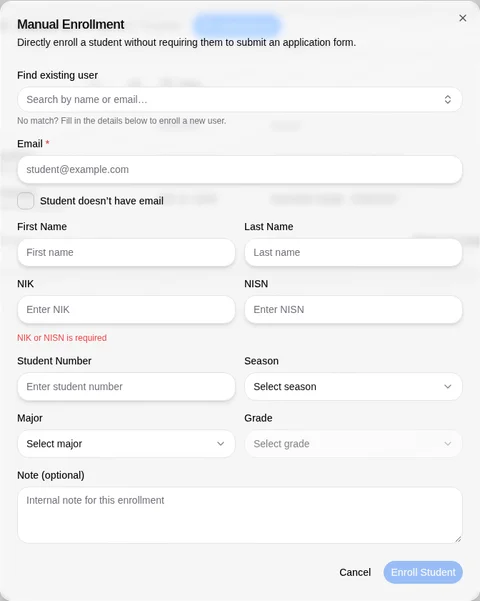
Review Find existing user (search by name or email) to avoid duplicates. The blank dialog shows Email *, Student doesn’t have email, First Name, Last Name, NIK, and NISN; inline validation says NIK or NISN is required.
Review Student Number, Season, Major, Grade (disabled until selections), and Note (optional). Required behavior beyond the observed email marker and identity validation needs confirmation; do not assume the no-email checkbox removes every requirement.
Check the student and placement before Enroll Student (disabled on the blank form); use Cancel to leave. Enrollment was not submitted. After an authorized submission, check membership and placement; never expose student identifiers in public screenshots.
Check the outcome
After an authorized action, check the intended record, placement and status. No saved-success outcome was observed; stop if results differ.
Troubleshooting
Missing controls can indicate a role or setup problem. Ask the school to verify your access; do not create duplicate records or delete data.