

Prepare the Study Plan (RPP) form
· 2 min read
This guide describes the form controls observed in Rumahsekolah. Final saving and submission were not tested; check the actual result after any action.
Preparation
Use an authorized account and the intended school. Prepare approved information and avoid duplicate records.
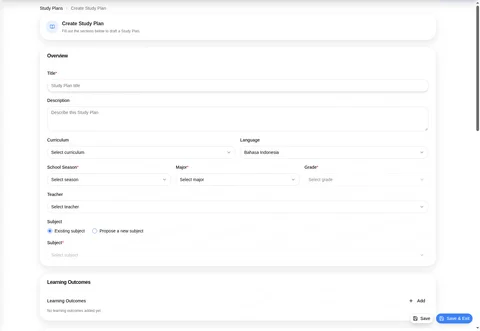
Open Study Plan → Study Plans → + Create Study Plan. The page manages RPP / Study Plan drafts.
Complete required Title, School Season, Major, Grade, and Subject. Grade stays disabled until dependencies are selected. Review Description, Curriculum, Language (default Bahasa Indonesia), and Teacher.
Choose subject mode deliberately: Existing subject (default) or Propose a new subject. Proposal behavior was not tested.
Review Learning Outcomes (Add), Units (Add Unit), Modules (Add Module), and Assessments (Add Assessment). Only the visible controls were observed; adding items was not tested.
In Schedule, review Estimated Meetings, Location (Select a classroom), Start Date, End Date, Start Time, End Time, Mon–Sun weekdays, Recurrence Note, and Excluded Dates (Add). Duration (minutes) and Total Allocated Minutes are disabled calculated fields.
Review before Save or Save & Exit; then check the draft and schedule. Neither action nor calculations were tested.
Check the outcome
After an authorized action, check the intended record, placement and status. No saved-success outcome was observed; stop if results differ.
Troubleshooting
Missing controls can indicate a role or setup problem. Ask the school to verify your access; do not create duplicate records or delete data.