

Fill in the school subject form
· 1 min read
This guide describes the form controls observed in Rumahsekolah. Final saving and submission were not tested; check the actual result after any action.
Preparation
Use an authorized account and the intended school. Prepare approved information and avoid duplicate records.
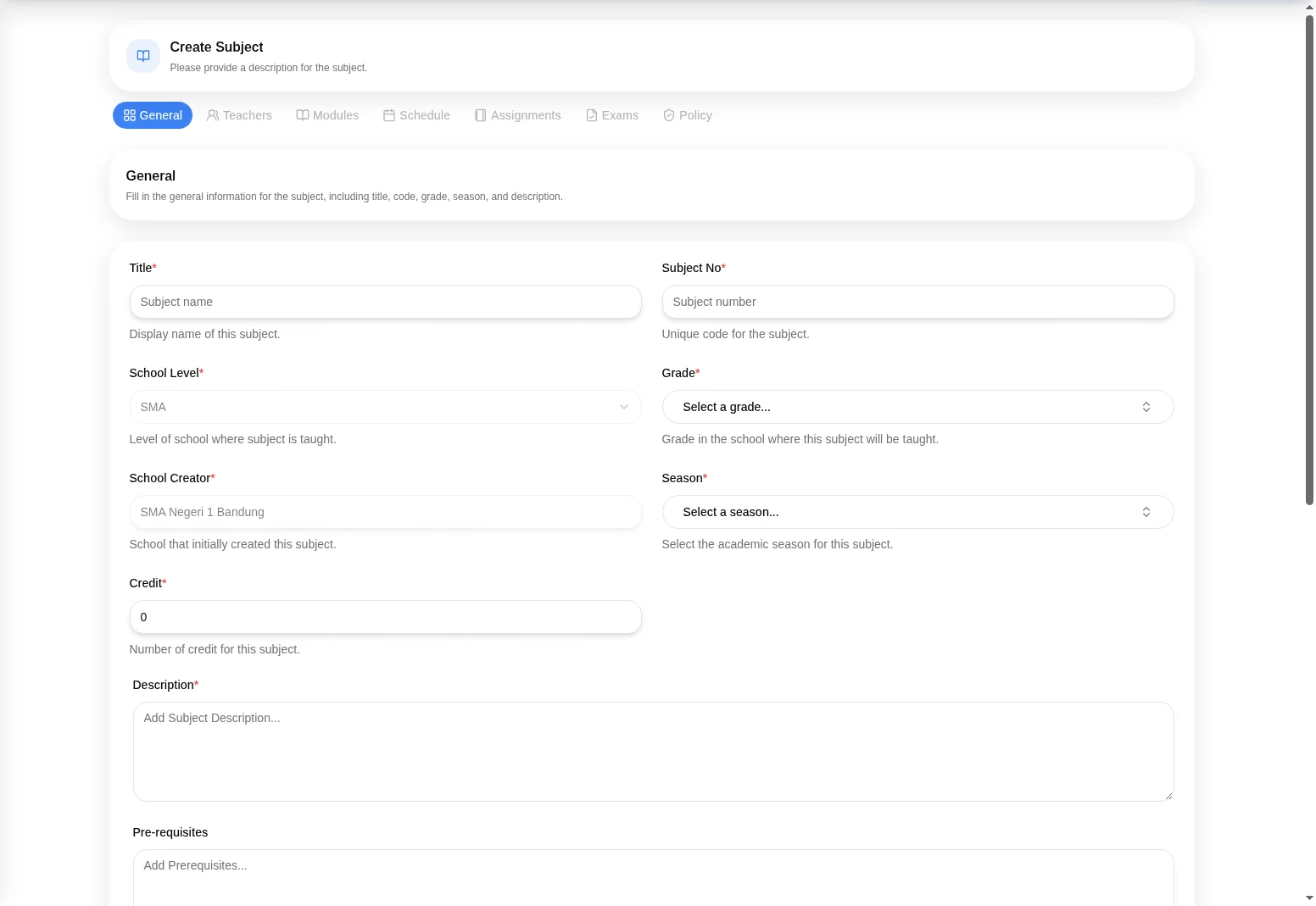
Open Subjects → + Add → Create Subject in school management. This is the school-management page, not a presumed Learning creation route.
Required fields are Title, Subject No, School Level (disabled/pre-filled), Grade, School Creator (disabled/pre-filled), Season, Credit, and Description. Do not try to edit disabled values.
Review Pre-requisites, Learning Objectives, Learning Method, Learning Outcomes, and Visibility: Public (default) or Private.
Tabs shown are General, Teachers, Modules, Schedule, Assignments, Exams, and Policy. Non-General tabs are disabled on the blank form; do not assume they can be configured before saving.
Review before Save, then check the subject and visibility. Save and later-tab behavior were not tested.
Check the outcome
After an authorized action, check the intended record, placement and status. No saved-success outcome was observed; stop if results differ.
Troubleshooting
Missing controls can indicate a role or setup problem. Ask the school to verify your access; do not create duplicate records or delete data.